Quick start · 6 steps
Run your business from your phone
Quote a job in the driveway — type it or just talk it out — then send it, get paid, and see which work actually made you money. Here's the whole loop.
Make it yours
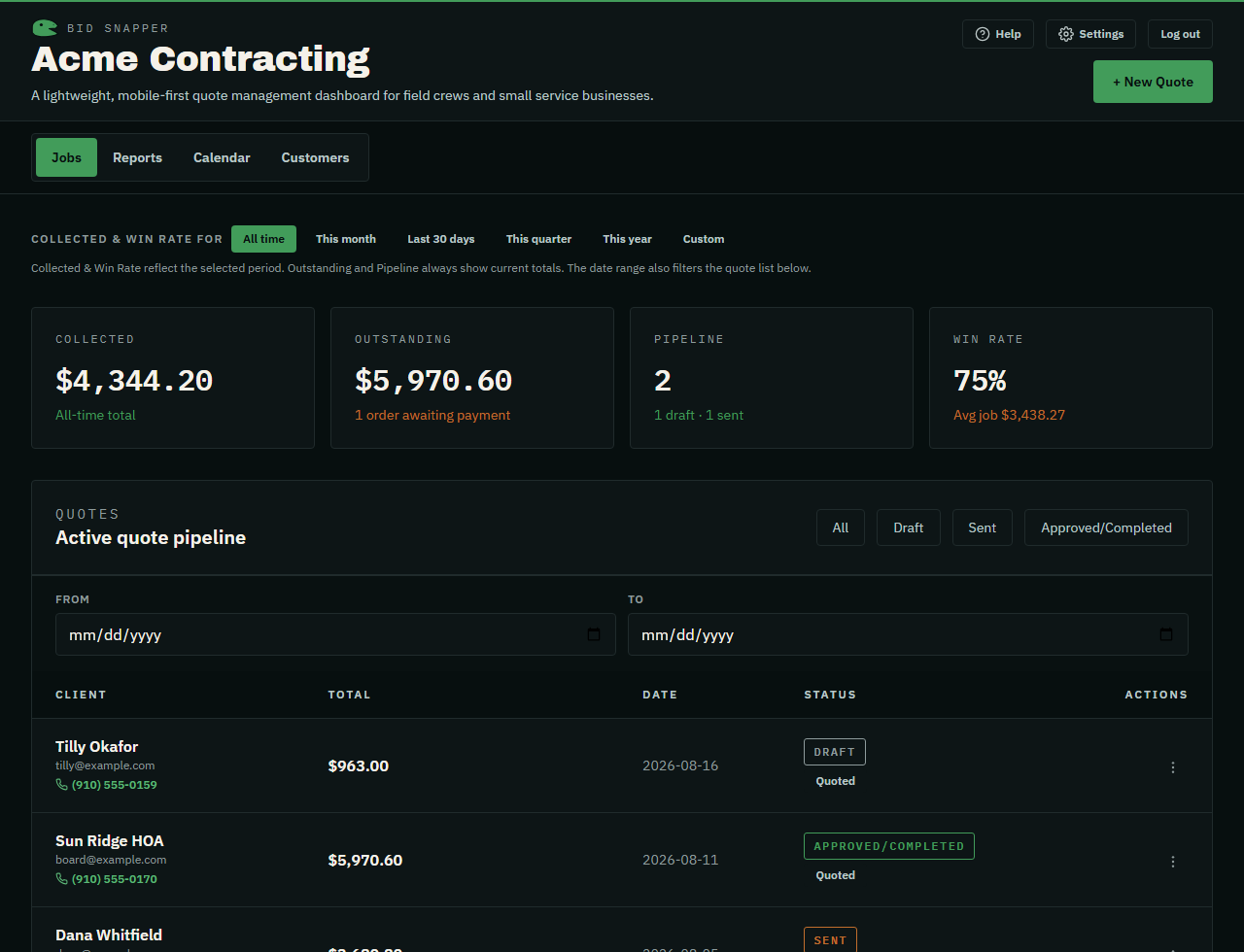
Tap Settings in the top-right, then:
• Upload your logo — it shows in your header and on every quote and PDF you send.
• Set your sales-tax rate — any percentage, or switch tax off entirely.
• Reset your password anytime.
Do this once and every quote you make comes out branded and correct.
Build a quote
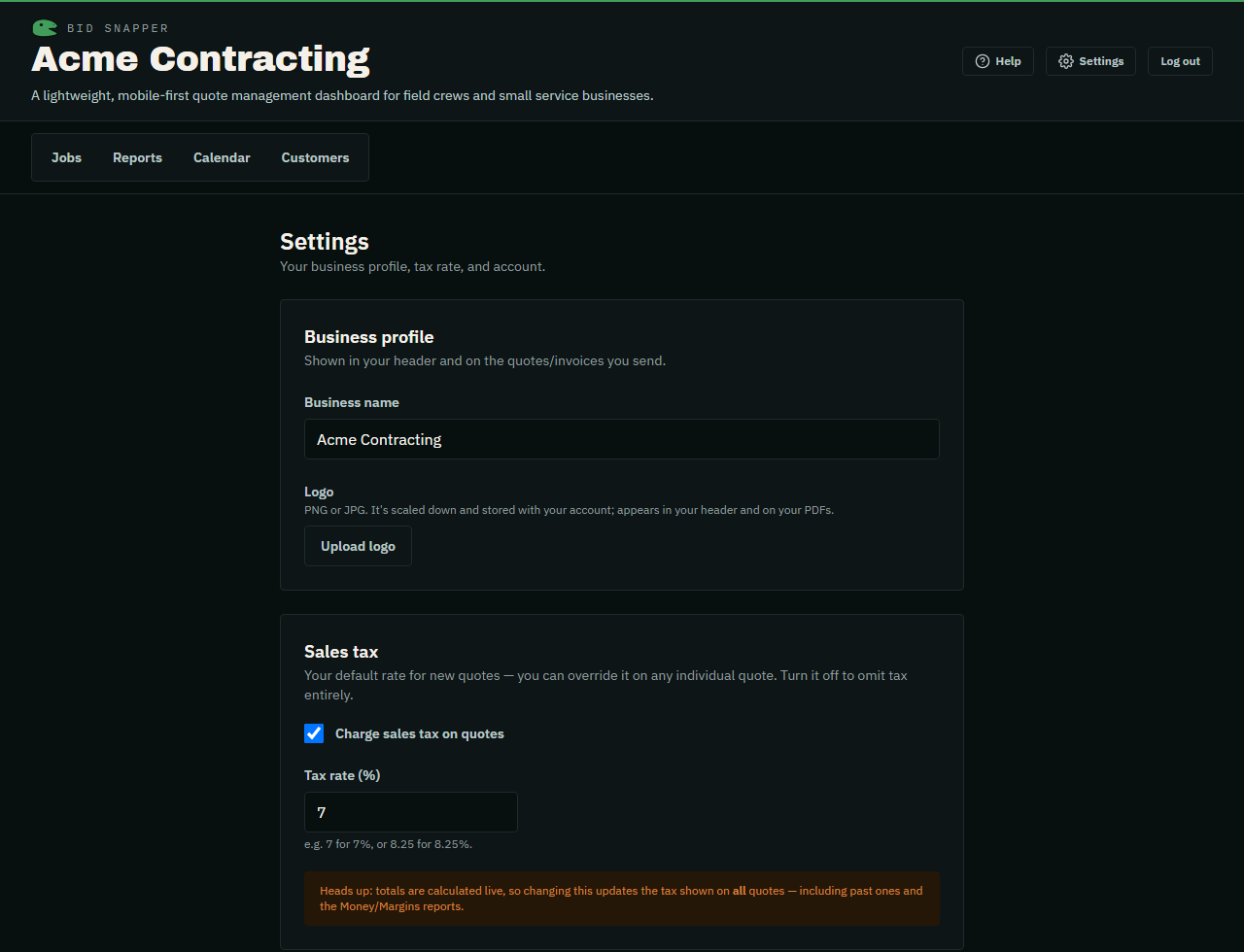
Tap + New Quote. Add the customer, then your line items — description, quantity, price.
Bid Snapper adds up the subtotal, tax, and total as you type. Hit Save and it's in your pipeline.
Everything saves to your account and syncs across your phone, tablet, and laptop.
Or just talk it out
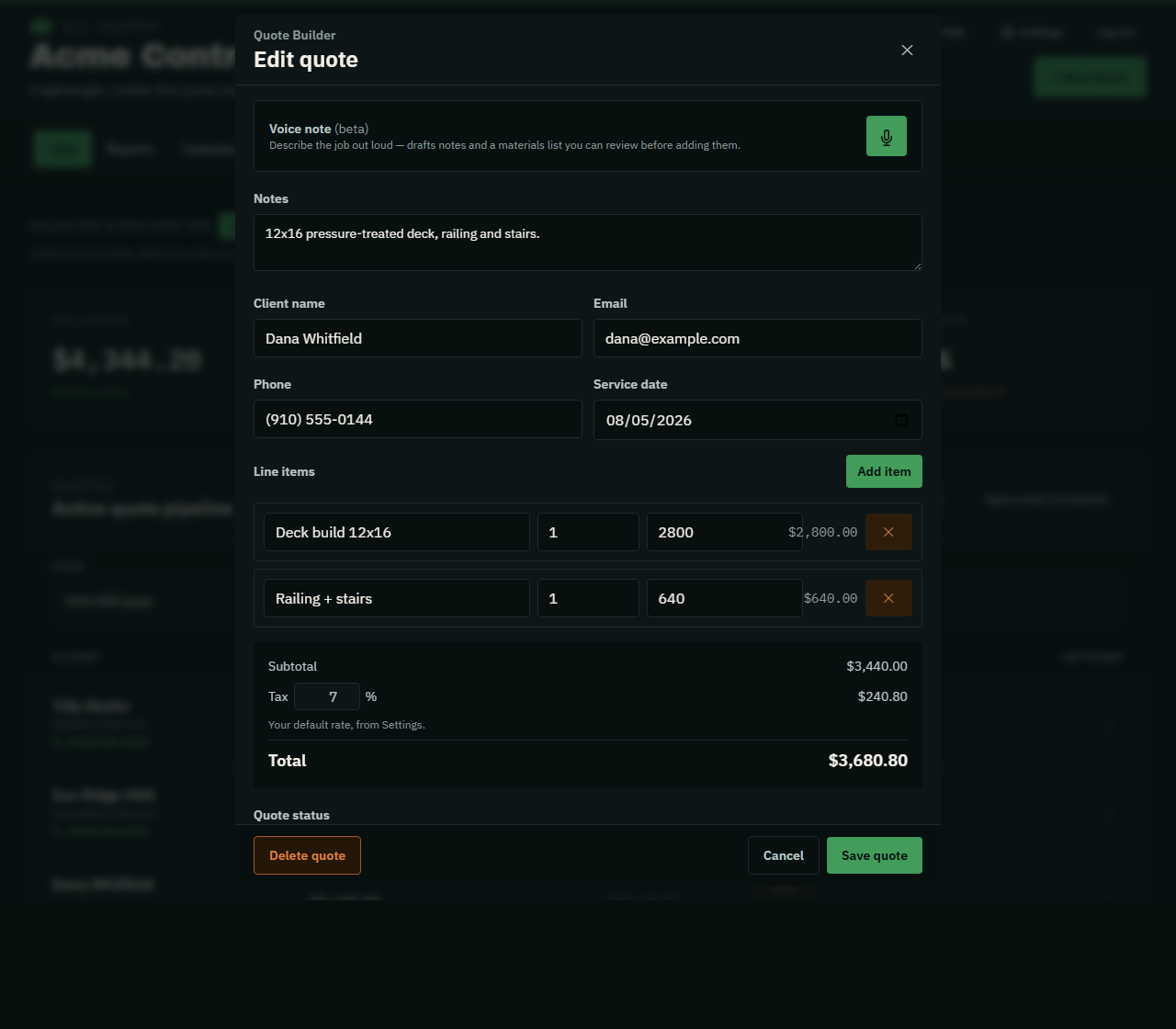
Standing in the yard with your hands full? Inside + New Quote there's a Voice note panel with a round green mic button. Tap it and describe the job the way you'd say it to a customer.
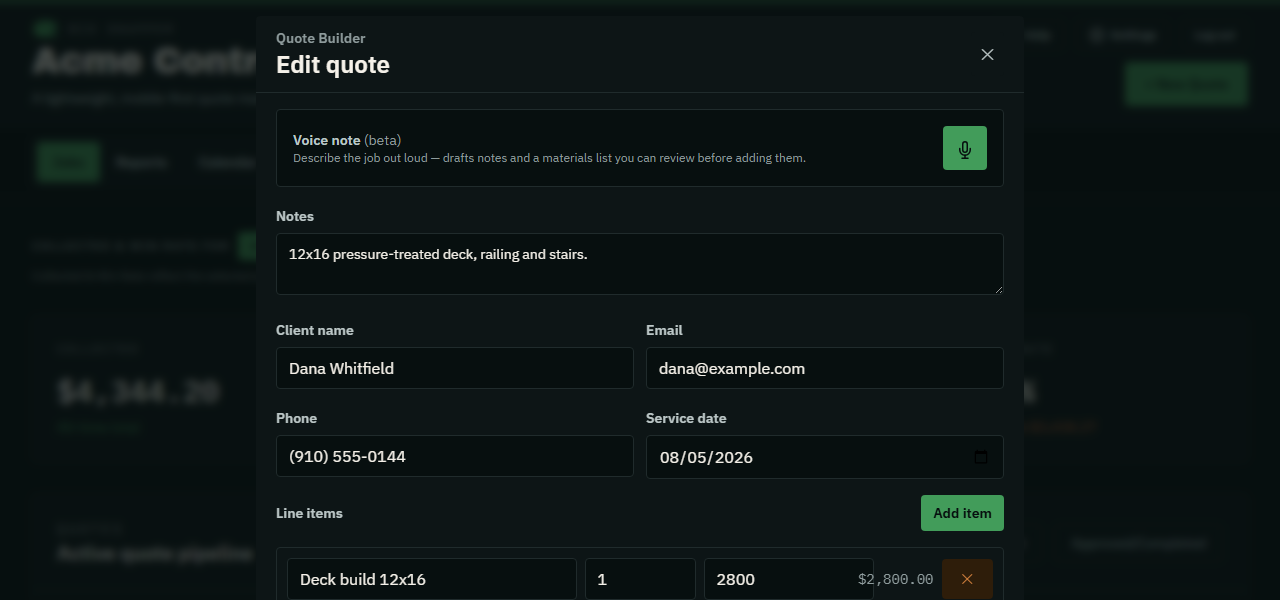
How to record: tap the mic to start, tap it again to pause, and tap once more to keep going — you can build the description over as many takes as you need. Each stretch of recording stops itself after 60 seconds so a forgotten mic can't run all afternoon. When you're finished, tap Done.
Say something like this
“This one's for Dana Whitfield, phone nine one zero, five five five, oh one four four. Building a twelve by sixteen deck out back, pressure-treated, with railing and stairs. Start it Thursday the fourteenth. Told her twenty-eight hundred.”
What it pulls out
- Client name, phone, and email
- Job type and dimensions
- Add-ons you mention
- The service date
- Any price you state out loud
- A draft materials list from the dimensions
Nothing saves on its own. Everything lands in a review panel first, with a Client details found summary so you can check it before it goes anywhere. Tap Add to quote to accept it or Discard to throw it away. It only fills fields you've left blank — anything you already typed is never overwritten.
Good to know
- Your browser will ask for microphone permission the first time. If you tap block by accident, you'll need to re-allow it in your browser's site settings.
- On Android and Chrome, the speech-to-text happens inside your browser — no audio is ever uploaded.
- On iPhone and iPad, Apple doesn't allow that, so the audio is sent to our server to be transcribed and then discarded.
Limits
- It's beta. Read the draft before you send anything to a customer — treat it as a head start, not a finished quote.
- Around 20 voice notes an hour per account. If you hit it, the app says so; wait a bit and it clears.
- Noisy job site? Names and numbers are what suffer first — those are the fields worth a second look.
The mic never replaces typing. Every field it fills is still yours to edit, and the regular quote form works exactly as it always did.
Send it — then get paid
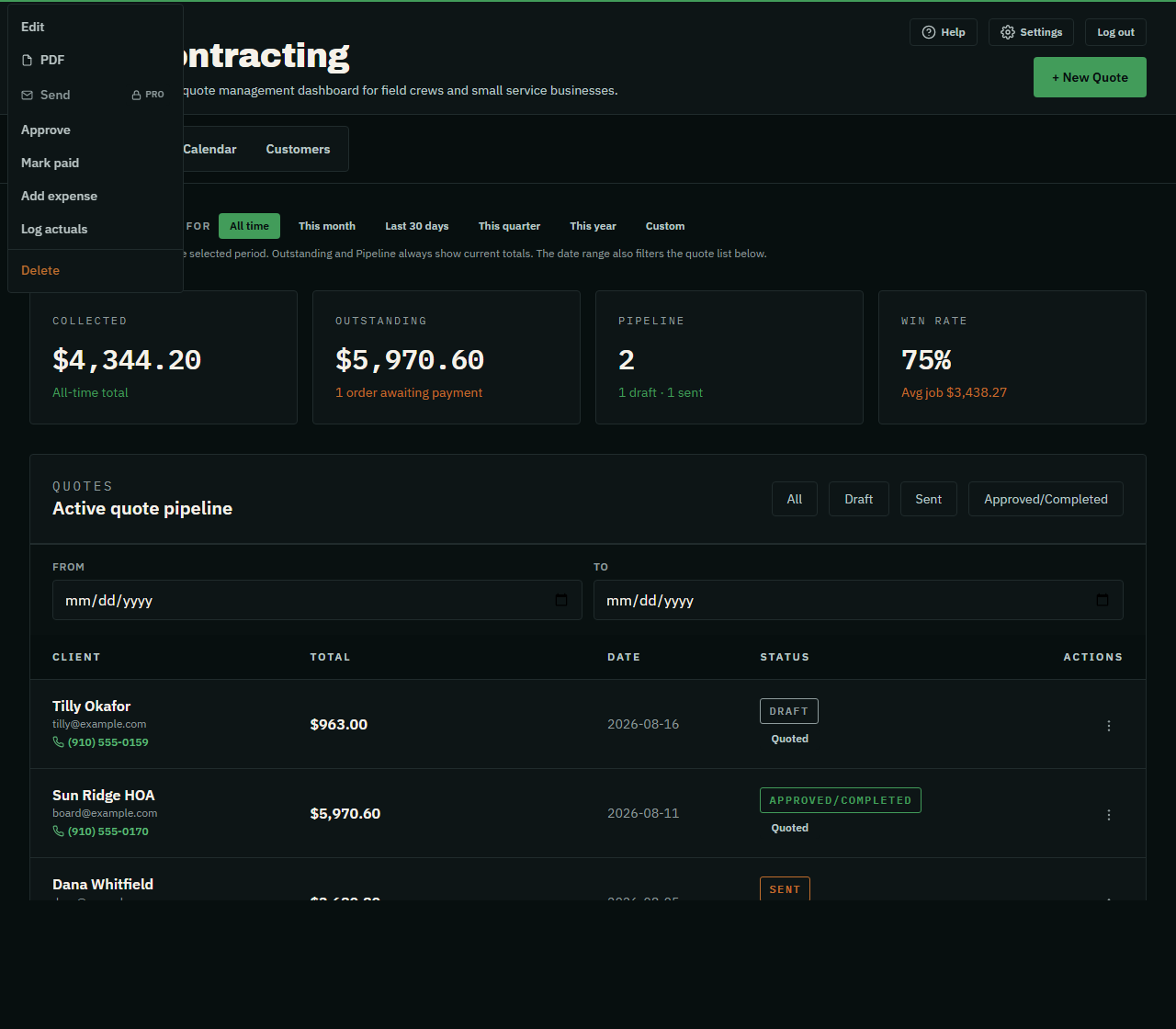
On any quote, open the ⋯ menu:
• PDF — save or print a clean, branded quote.
• Send — email it to the customer as a PDF.
• Mark paid — when the money's in, one tap. No need to reopen the quote.
Marked a job Paid? It rolls straight into your money totals.
Watch the money
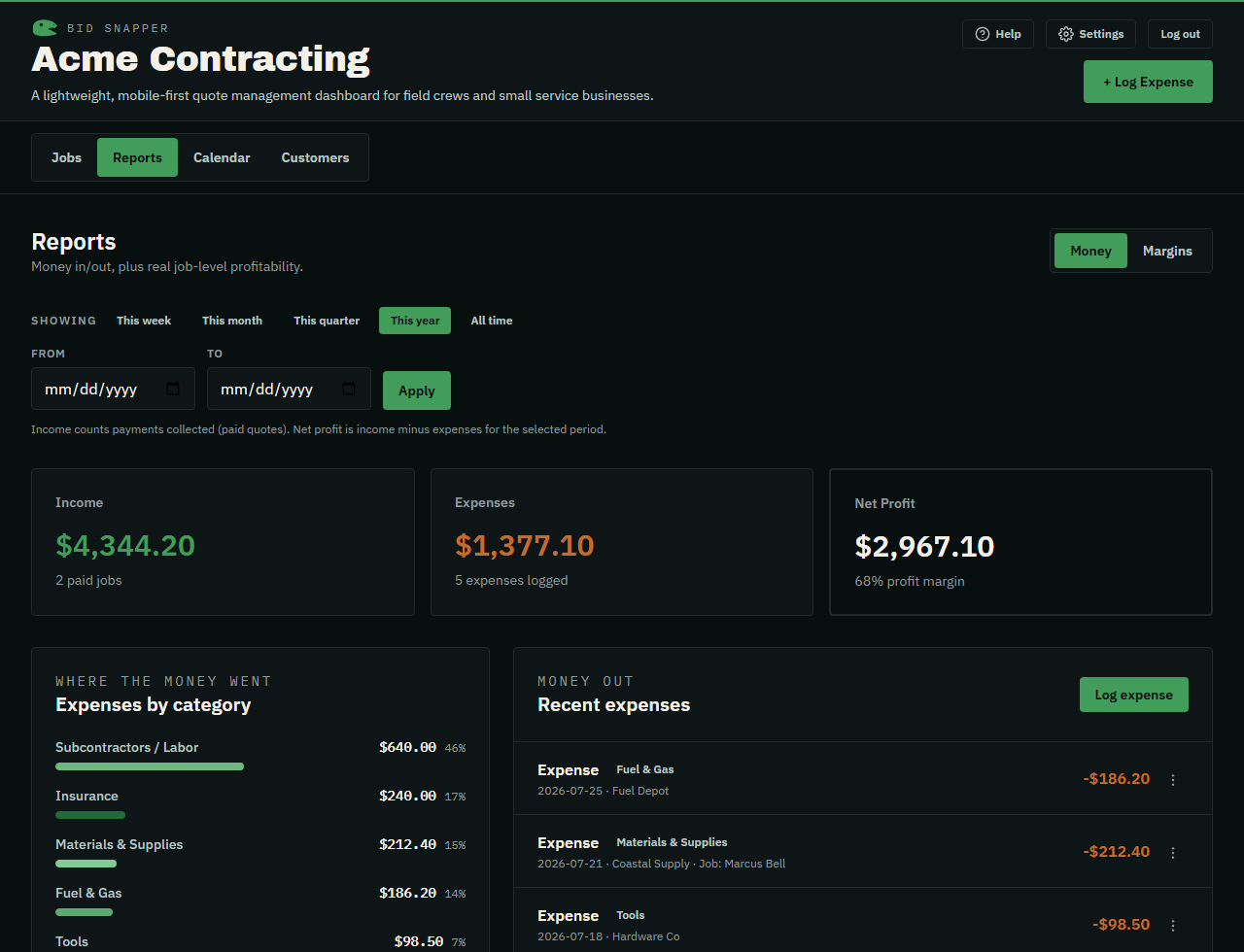
The Money tab is your books at a glance: income − expenses = net profit.
Switch between this week, month, quarter, year, or all time. Log expenses here, or attach them to a specific job so you can see per-job profit.
Know which jobs actually pay
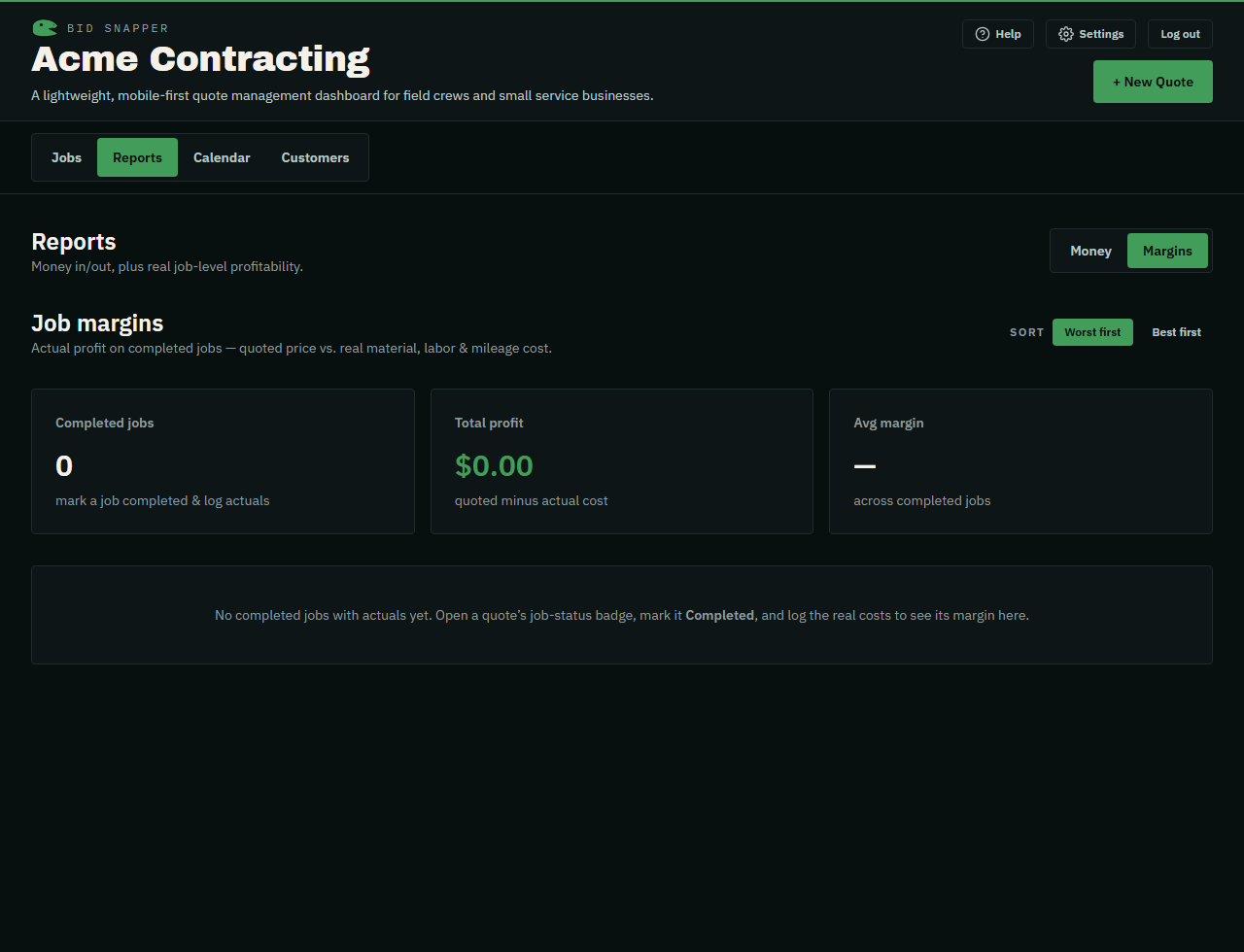
On a finished job, use ⋯ → Log actuals to enter what it really cost — materials, labor hours, mileage.
The Margins tab then ranks your completed jobs by real profit margin: green is healthy, clay means you underbid it. That's how you price the next one right.
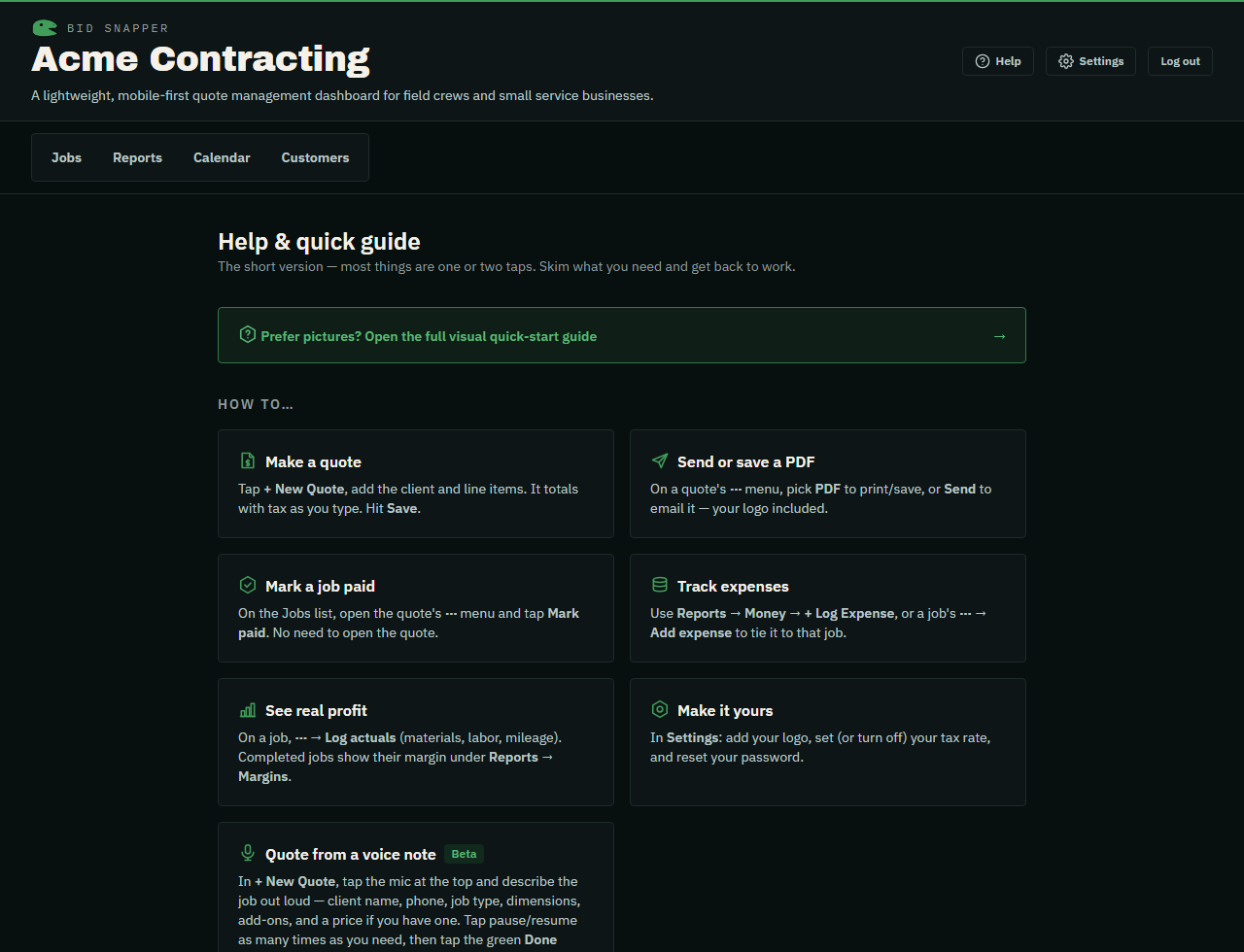
Stuck? Help is one tap away.
The Help button at the top of the app has this guide plus quick answers to the most common questions — including what to do when the mic won't start. And the very first time you sign in, a short welcome walks you through the basics.